KR EN

ECAD Design Compare

Design Revision Changes,
Detected Automatically

Compare design data before and after modification automatically,
with detected changes highlighted in color. Analyze differences down to the Layer, Net, and object level.

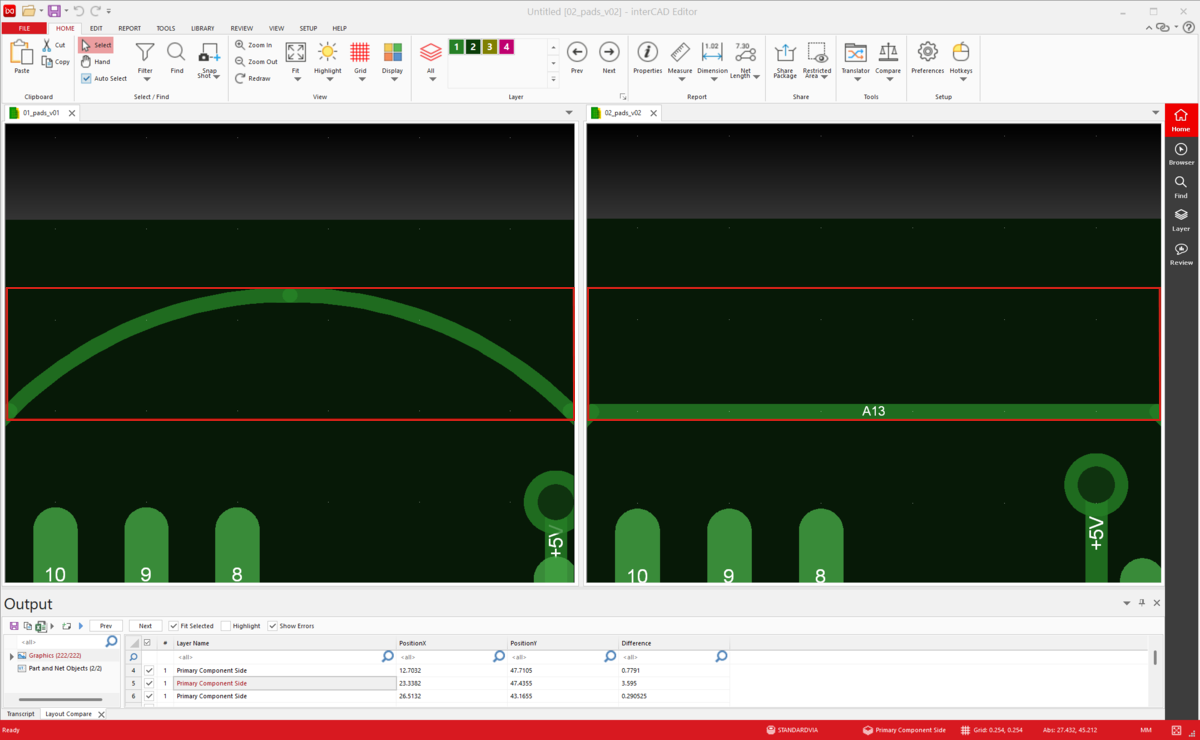
interCAD Compare — PCB revision diff view

Revision Review That Relied on the Eye,
Replaced by Automatic Comparison

    Before
  • Changes You Have to Find by Eye

    Comparing modified design data manually
    means missed changes and longer reviews.

  • Manual Checks, Layer by Layer

    Opening and checking layers and objects one by one
    consumes hours of design change analysis.

  • Change History That Needs Extra Paperwork

    Capturing and documenting modifications separately
    invites miscommunication during collaboration.

    After
  • Changes Detected and Visualized Instantly

    Changed Layers and objects are compared automatically
    so design differences are visible at a glance.

  • Focused Comparison, Only Where You Need It

    Select just the area you need and review
    only the relevant changes efficiently.

  • Share Results As-Is, No Extra Prep

    Export comparison results as files
    and share them with your team without rework.

Supported Format

Whatever the Format,
One Compare Finds the Changes

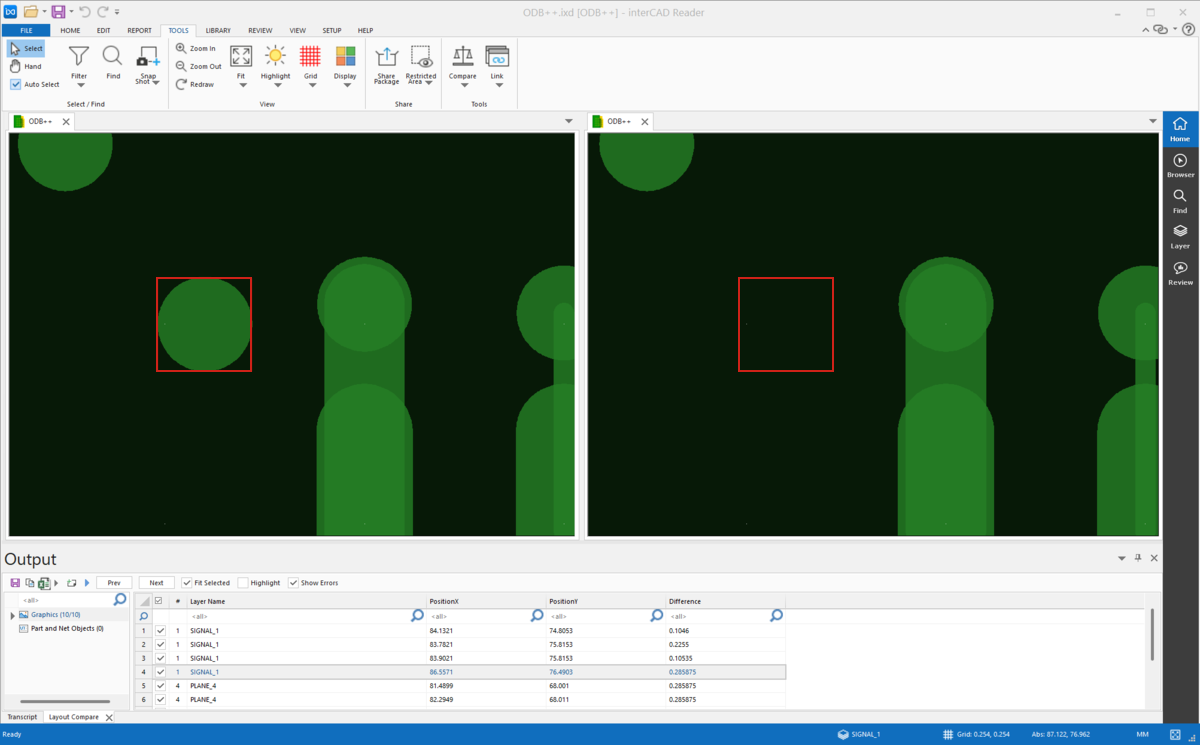
Changed areas in Schematic, PCB, Gerber, and ODB++ data are compared automatically.
Review even complex design differences quickly and accurately.

Compare It All,
or Just the Part That Matters

From full-Layer comparison to specific selected areas,
set the scope to your review purpose and analyze only the changes you need.

  • Specific-area comparison

    Select only the objects and areas you care about and focus your review on the differences that matter.

  • All Layer comparison

    Compare all Layers at once and check design changes with nothing left out.

What Changed and Where,
Shown to You Instantly

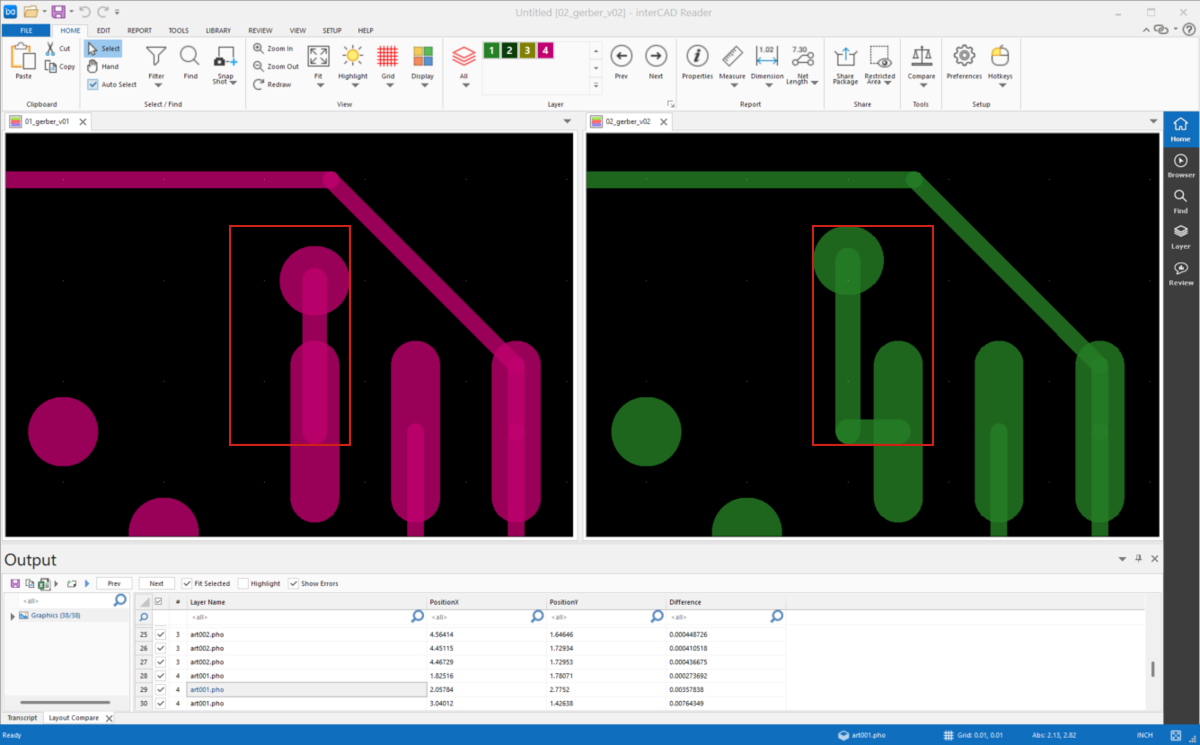
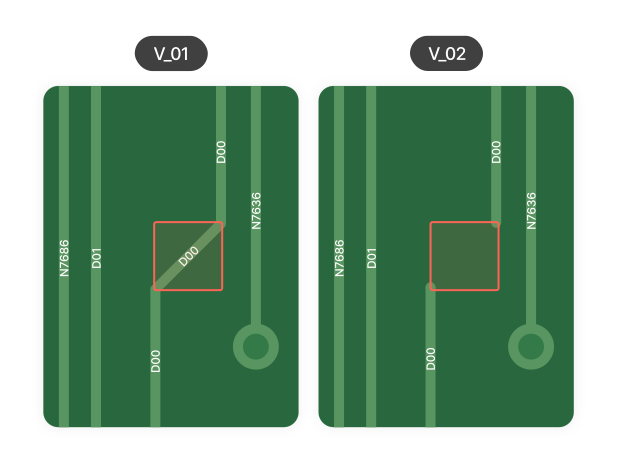
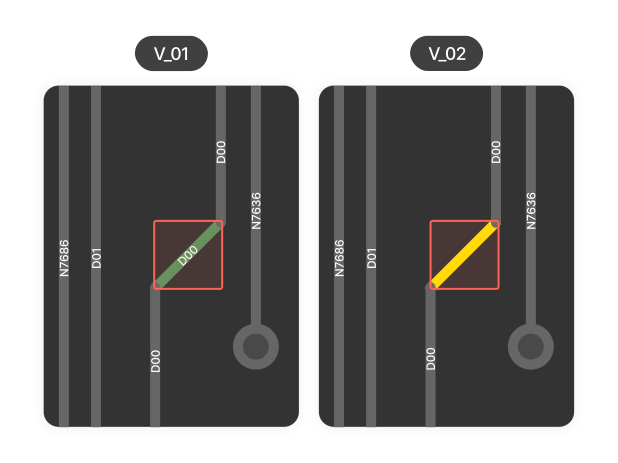
Differences between two design datasets are compared graphically and detected changes are highlighted automatically.
Spend less time hunting for modified areas.

  • Graphic-based visual comparison

    Shows graphical differences between two designs in an image-based view, so shape changes and revisions are clear at a glance.

  • Automatic Highlight

    Areas with detected differences are highlighted automatically, so no change goes unnoticed.

  • View-linked navigation

    Jump straight to detected change locations and analyze design differences accurately.

Not Just the Graphics,
Attributes Get Compared Too

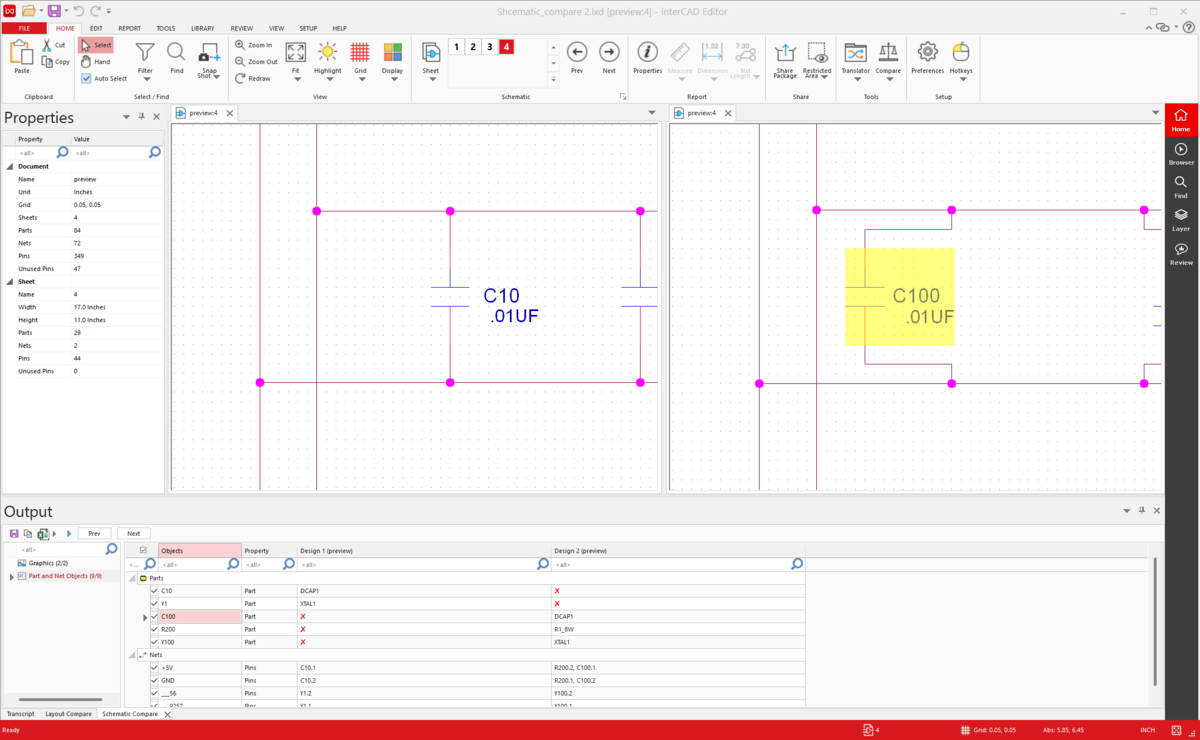
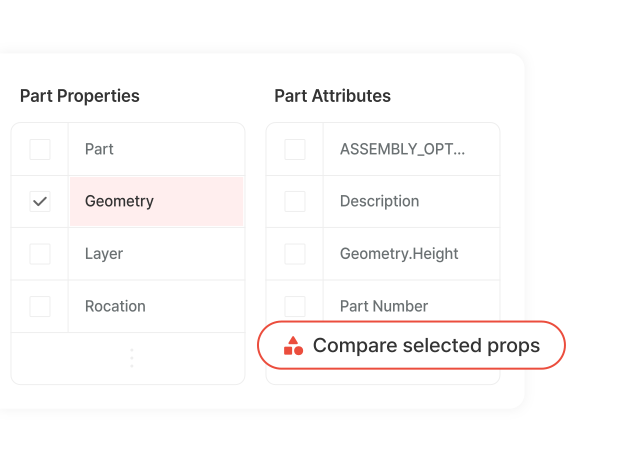
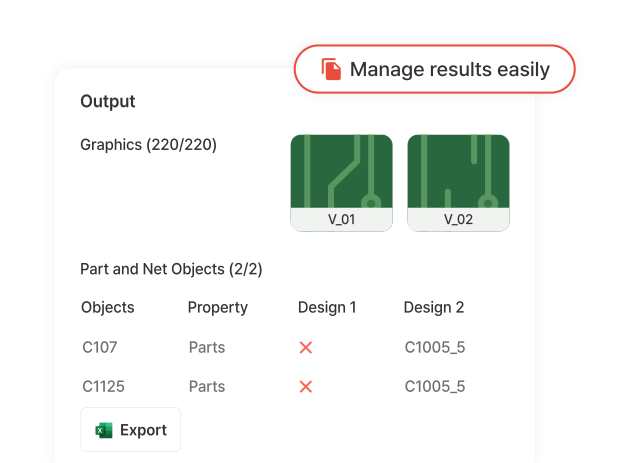
Compare attribute information of parts, Vias, Nets, and other design objects as a list,
then export the results to Excel for change history management in one pass.

  • Property Compare

    Compare part and Net attributes in list form to catch changes that graphics alone can't show.

  • Excel Output

    Export comparison results in Excel format to handle review documentation and design change history management in one pass.

Workflow

From Comparison to Result Sharing — in Four Steps

Skip manual cross-checking — automatically find every difference and organize the results in one flow.

  • 01

    Import Design

    Load the two designs you want to compare, and you're ready. Start comparing right away with no complex setup.

    Ready on import
  • 02

    Set Compare Area

    Narrow the scope freely, from all layers to a specific area, to fit your review goal.

    Compare only what matters
  • 03

    Analyze Difference

    Auto-compare geometry and properties to catch every added, removed, or changed object.

    Auto change detection
  • 04

    Export Result

    Export the detected differences as a result file for change history and review records.

    Change history, sorted

FAQ

Do you have any questions?

interCAD, Start Your Free Trial Today!

Familiar environment, powerful performance.
Get started with just one click.

Free Trial
Contact us KakaoTalk TOP